Catherine Hu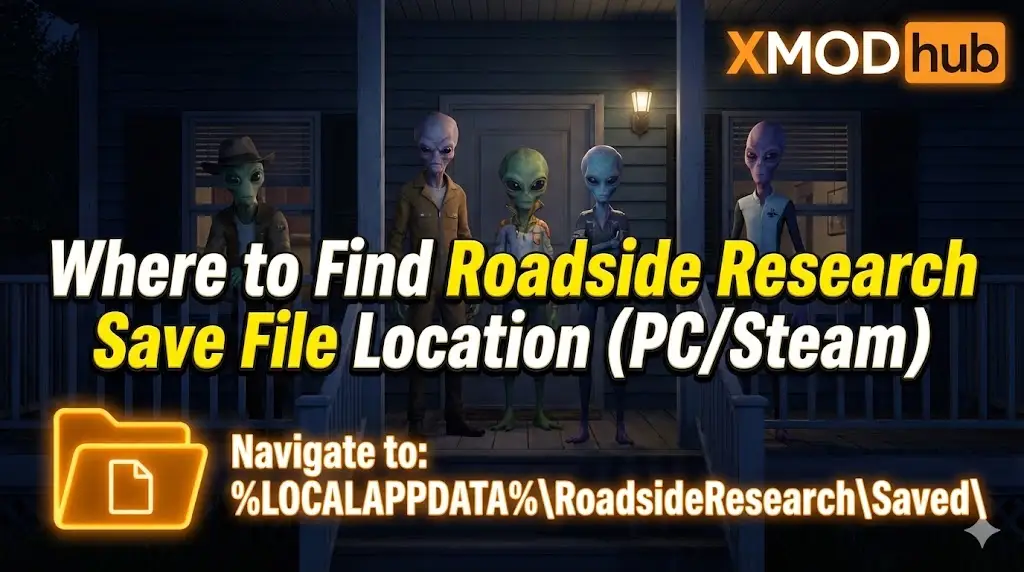
Editor’s View: Why This Matters (The Unity Engine Risk)
“We have all been there. You just collected the final ‘Alpha Artifact’ for your grant proposal. The game stutters, auto-saves, and then… crashes. When you reload, your inventory is empty.
I specifically wrote this guide because Unity Engine games store saves in a different location (LocalLow) than most AAA titles. If you are looking in the standard ‘Local’ folder, you won’t find anything. Please backup your data manually. Scientific progress is hard enough without losing it to a bug.”
There is nothing worse than sinking 30 hours into building the perfect mobile laboratory in Roadside Research, only to have a random crash or a “corrupted data” error wipe your hard drive. In a simulation game where every data sample counts, losing your save file sets you back to the Stone Age.
Whether you want to manually backup your research progress before a major update, transfer your lab to a Steam Deck, or tweak the config files for better performance, you first need to find where the data is hidden.
Below is the exact file path for Roadside Research on Windows and Steam Deck, along with a safer, automated method to protect your scientific breakthroughs.
You may also like:
Roadside Research Cheat Engine Table vs. XMODhub Trainer: Best Free Alternative (2026)
Windows PC Save File Location (Correct Unity Path)
Unlike Unreal Engine games, Roadside Research (and most Unity titles) stores save data in the LocalLow directory.
C:\Users\%USERNAME%\AppData\LocalLow\[Developer Name]\Roadside Research\How to navigate there quickly:
- Press Windows Key + R on your keyboard to open the Run dialog.
- Type
%userprofile%\AppData\LocalLowand press Enter. - Look for the folder named after the developer (or simply Roadside Research).
- Your save files usually end in
.save,.json, or.dat.
Roadside Research Config File Location
If you need to manually change resolution, disable V-Sync, or adjust UI scaling beyond what the in-game menu allows, check the Settings or Player.log files.
C:\Users\%USERNAME%\AppData\LocalLow\[Developer Name]\Roadside Research\Key Files to Edit:
- Settings.json (or Preferences.xml): Contains graphical and audio settings. Open with Notepad to edit.
- Player.log: If your game is crashing, this text file contains the error logs. Send this to the developers for support.
Warning: Always create a copy of Settings.json before editing values manually.
Steam Deck / Linux Save Location
Roadside Research is a great fit for the Steam Deck, but finding files requires navigating the Proton layer.
/home/deck/.local/share/Steam/steamapps/compatdata/[Steam_App_ID]/pfx/drive_c/users/steamuser/AppData/LocalLow/[Developer Name]/Roadside Research/Tip: You will need the specific Steam App ID. You can find this by right-clicking the game in your library -> Properties -> Updates.
How to Manually Reset Progress
Sometimes, you just want a fresh start. If the in-game “New Game” button doesn’t fully wipe your tech tree or achievements:
- Close the game and disable Steam Cloud synchronization.
- Navigate to the Save File Location mentioned above.
- Delete the entire contents of the folder (or move them to a backup folder named “Old_Saves”).
- Relaunch the game. It will force a clean state generation.
The Smarter Way: One-Click Backup with XMODhub
Digging through LocalLow folders every time you complete a mission is tedious. One accidental delete, and your lab is gone. XMODhub offers a built-in Save Manager tool designed specifically for simulation games.
01Auto-Backup
XMODhub automatically creates a zipped backup of your save folder every time you exit the game.
02Version History
Did a bug soft-lock your rover? Roll back to the save from 10 minutes ago instantly.
03Visual Organization
Label your saves (e.g., “Pre-Artifact Analysis”) to organize your scientific timeline.
XMODhub: More Than Just a Save Manager
XMODhub is your ultimate all-in-one toolkit for PC gaming. Whether you need Trainers for Infinite Funding, or Visual Mods to improve textures, XMODhub has everything covered.
How to Use XMODhub for Roadside Research:
1. Download and Install the XMODhub client safely.

2. Search for “Roadside Research” in the client.

3. Launch the game directly from the client.
FAQ
Q: Can I transfer my Roadside Research save to another PC?
A: Yes. Simply copy the entire Roadside Research folder from LocalLow to the exact same location on the new computer.
Q: Where is the Player.log file?
A: It is located in the same folder as your saves: %userprofile%\AppData\LocalLow\[Developer Name]\Roadside Research\. This file is crucial for troubleshooting crashes.
Q: Does modifying save files get me banned?
A: No. Roadside Research is a single-player simulation. Modifying your save (e.g., editing JSON to add money) is perfectly safe.
Conclusion
Locating your Roadside Research save file is a crucial skill, whether you are recovering from a Unity crash, migrating to a new PC, or manually resetting your tech tree.
However, messing with LocalLow folders carries a risk. One wrong deletion can wipe out hours of data collection. If you prefer a safer solution, we highly recommend the XMODhub Save Manager. It automates your backups, keeping your scientific progress secure so you can focus on the anomalies, not the file explorer.

I am a passionate gamer and writer at XMODhub, dedicated to bringing you the latest gaming news, tips, and insights.
Connect with me:
LinkedIn Profile ↗