Catherine Hu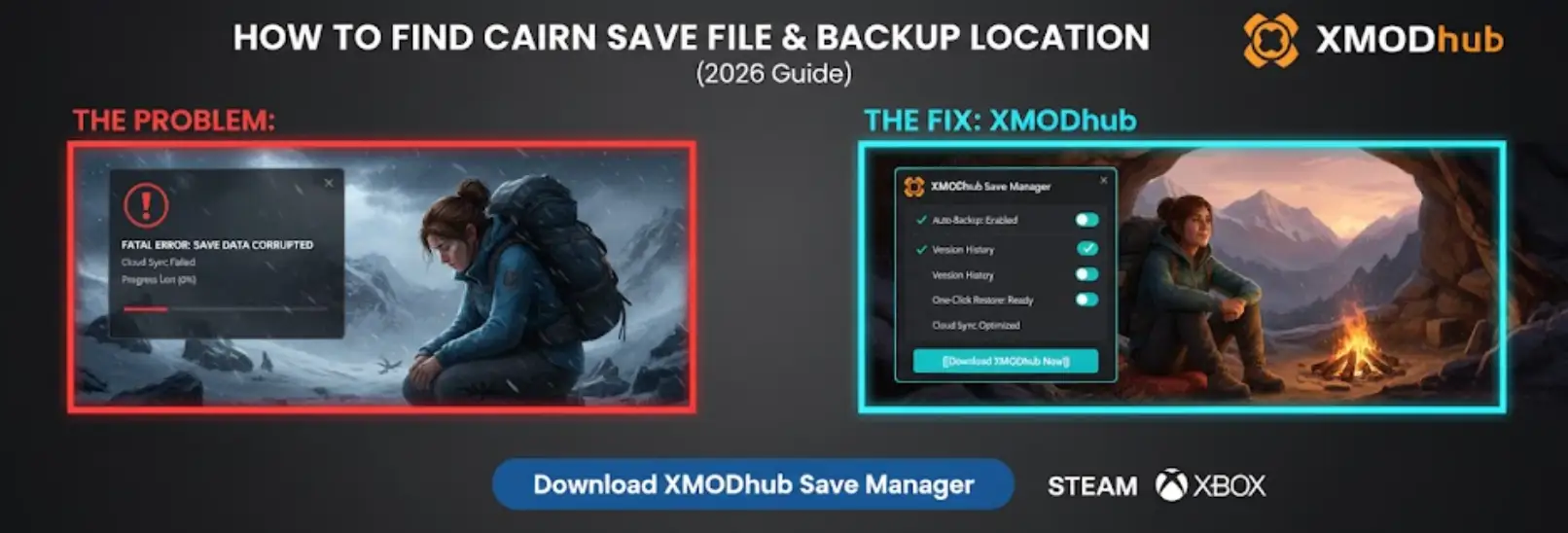
There is nothing worse than sinking 20 hours into a grueling ascent in Cairn only to lose your progress due to a corrupted save file or a sudden cloud sync error while you’re half-way up a cliff. Whether you want to manually backup Aava’s progress before a risky peak, transfer your save to your laptop, or modify the config file to squeeze out more FPS for the game’s physics-heavy environments, you first need to find where the data is hidden.
Below is the exact file path for Cairn on Windows and Steam Deck, along with a safer, automated method to manage your climbing backups.
Cairn: Cheat Engine Table vs. XMODhub Trainer (Best Free Alternative)
Editor’s View: Why This Matters
“We have all been there. You are deep into Cairn, Aava is perfectly positioned for the final reach, and suddenly—a power outage, or a random crash during an auto-save. When you relaunch, your save is gone, and you’re back at the base of the mountain. It is a climber’s worst nightmare.
I wrote this guide because Cairn uses a unique procedural save system that can be tricky. Even if you don’t plan on modding, please backup your SaveGames folder manually before tackling the higher altitudes. Don’t learn this lesson the hard way like I did.”
— Catherine Hu, Senior Editor at XMODhub
Windows PC Save File Location
For the Steam and Epic Games versions of Cairn, the save files are hidden in your system’s AppData folder.
C:\Users\[YourUsername]\AppData\Local\Cairn\Saved\SaveGames\How to navigate there quickly:
- Press Windows Key + R to open the Run dialog.
- Type
%localappdata%\Cairn\Saved\SaveGamesand press Enter. - You will see files like
SaveSlot0.sav—these are your actual climbing records.
Cairn Config File Location (Graphics & Settings)
If you need to manually tweak graphics settings (like disabling Motion Blur or adjusting UE5 Nanite levels) to see the climbing holds more clearly, go here:
C:\Users\[YourUsername]\AppData\Local\Cairn\Saved\Config\WindowsNoEditor\How to Edit: Open GameUserSettings.ini with Notepad. Warning: Be careful not to change the physics polling rates, as it can cause Aava to clip through the terrain.
Steam Deck / Linux Save Location
If you are playing Cairn on the Steam Deck, the Windows file structure is emulated within the Proton compatibility layer.
/home/deck/.local/share/Steam/steamapps/compatdata/2581610/pfx/drive_c/users/steamuser/AppData/Local/Cairn/Saved/SaveGames/Note: 2581610 is the official Steam App ID for Cairn.
Emergency: How to Recover a Corrupted Cairn Save
If your save file says “Corrupted” or won’t load, check the SaveGames folder for files named SaveSlot0_Backup.sav.
- Move your corrupted
SaveSlot0.savto your desktop. - Rename the
SaveSlot0_Backup.savtoSaveSlot0.sav. - Relaunch the game. This uses the game’s internal fallback system to restore your progress.
The Smarter Way: One-Click Backup with XMODhub
Navigating through hidden system folders every time you want to secure your ascent is tedious.

XMODhub offers a built-in Save Manager tool designed specifically for survival sims like Cairn.
- Auto-Backup: XMODhub creates a timestamped backup every time you exit the game.
- Version History: Corrupted your save during a storm? Roll back to your position from an hour ago instantly.
- Visual Management: Access and organize your save slots with a single click from the dashboard.
FAQ
Q: Can I transfer my Cairn save to another PC?
Yes. Simply copy the entire contents of the SaveGames folder to the exact same location on the new computer.
Q: What is the Steam AppID for Cairn?
The ID is 2581610, which you’ll need to locate the folders on Steam Deck.
Q: Will Steam Cloud restore my deleted Cairn save?
Usually, yes, but if the cloud syncs after the corruption, the cloud save will also be broken. Local backups are essential.
Conclusion
Locating your Cairn save file is a crucial skill, whether you are migrating your progress to a Steam Deck or manually securing your ascent against potential crashes.
However, digging through system folders carries risks. If you prefer a safer, “set it and forget it” solution, we highly recommend the XMODhub Save Manager. It automates your backups, keeping your hard-earned progress secure so you can focus on the climb, not the file directory.
Think Bigger: XMODhub is far more than just a modding tool—it is a comprehensive Gaming Platform.

With support for over 5,000+ titles, we provide an all-in-one ecosystem for PC gamers.

I am a passionate gamer and writer at XMODhub, dedicated to bringing you the latest gaming news, tips, and insights.
Connect with me:
LinkedIn Profile ↗