
 Catherine Hu
You have spent hours studying the map, plotting task force intercepts, and preparing your air groups in Task Force Admiral – Vol.1: American Carrier Battles. You click “Launch,” expecting the Pacific Ocean to render, but instead, you are greeted by a silent desktop crash or a stubborn black screen.
For simulation enthusiasts, immersion is everything. Technical failures like “Fatal Error” pop-ups, infinite loading screens, or stuttering frame rates during carrier operations are not just annoying—they break the command experience.
Whether you are facing Unreal Engine crashes, missing DLLs, or performance bottlenecks, this guide covers the most effective, battle-tested solutions to get your fleet operational.
You may also like:
Task Force Admiral – Vol.1: Cheat Engine Table vs. XMODhub Trainer (Best Free Alternative)
Editor’s View: The Simulation Bottleneck
“I’ve been testing naval sims for years, and Task Force Admiral is a beast. Unlike standard shooters, this game tracks hundreds of aircraft and ships in real-time. When I first launched it on my test rig, it crashed instantly.
It wasn’t a bug in the code—it was my RAM XMP profile causing instability with the game’s physics calculations. Simulation games are incredibly sensitive to hardware stability. Before you blame the devs, realize that 90% of launch issues here are related to Corrupted C++ Libraries or Unstable Overclocks. I’ve verified the methods below; Method 2 is usually the silver bullet for Unreal Engine based games.”
— Catherine Hu, Lead Writer at XMODhub
Check First: Task Force Admiral System Requirements
Simulation games are CPU and Memory bound. Even with a generic RTX 40-series card, if your CPU lacks the single-core speed to handle the AI logic, the game may crash silently.
Pro Tip: If you have only 16GB of RAM, close your browser (Chrome) before playing. This game requires significant memory for historical data tracking.
Method 1: Verify Game Files (Steam Integrity)
Corrupted installation files are the #1 cause of Task Force Admiral crashing on startup. Decryption errors during download can leave “holes” in the game’s asset files.
- Open Steam and go to your Library.
- Right-click Task Force Admiral – Vol.1.
- Select Properties > Installed Files.
- Click “Verify integrity of game files”.
- Wait: Let the process finish. It will likely re-acquire 1-2 corrupted files.
Method 2: Update Drivers & Visual C++ (Unreal Engine Fix)
Task Force Admiral runs on Unreal Engine, which requires a very specific software environment. If you skip this, you will likely see MSVCP140.dll errors.
- Visual C++ Redistributables: Download the “Visual C++ Redistributable All-in-One” package from Microsoft. You must install both the x86 and x64 versions. This fixes 90% of “Missing Component” errors.
- GPU Drivers: Update your NVIDIA (Game Ready) or AMD (Adrenalin) drivers. Old drivers struggle with the complex water shaders used in this game.
- DirectX: Ensure you aren’t forcing DX12 on an older card. If in doubt, use
-d3d11in launch options (see Method 4).
Method 3: Fix Black Screen & Overlay Issues
If you hear the sounds of the ocean or menu music but see a black screen, an overlay is likely blocking the game’s rendering pipeline.
- Disable Overlays: Turn off Discord Overlay, Steam Overlay, and GeForce Experience overlay. These “hooks” often conflict with simulation games.
- Force Windowed Mode:
- Right-click the game in Steam > Properties.
- In “Launch Options”, type:
-windowed -noborder - Launch the game. If it works, you can switch back to Fullscreen in the in-game settings later.
Method 4: Common Error Codes & Fixes (D3D / RAM)
“Unreal Engine 4 Crash Reporter” / D3D Device Lost
This means your GPU driver crashed and reset.
- Fix: Your GPU is likely unstable. If you are overclocked, reset to stock speeds.
- Fix: Cap your FPS. In NVIDIA Control Panel, limit the game’s Max Frame Rate to 60. This prevents the GPU from working too hard on the menu screen.
Error 0xc0000005 (Access Violation)
The game tried to write a save file or config and was blocked.
- Fix: Run as Administrator. Right-click the game’s .exe file > Properties > Compatibility > “Run this program as an administrator”.
- Fix: Whitelist the game folder in Windows Defender or your Antivirus.
Infinite Loading / Stuck on “Initializing”
- Fix: This is almost always a storage speed issue. Ensure the game is installed on an SSD. HDDs are too slow to stream the map data required for this title.
Method 5: Fix Low FPS & Water Stuttering
Is the Pacific Ocean turning into a slide show?
- Lower Water Quality: Water rendering is the most expensive calculation in naval sims. Drop this from Ultra to High or Medium.
- Shadows & Clouds: Volumetric clouds are taxing. Lowering “Cloud Quality” provides a massive FPS boost without ruining the gameplay.
- High Priority Mode:
- Open Task Manager > Details.
- Right-click
TFA_Vol1.exe> Set Priority > High.
The Workaround: Manage the Chaos with XMODhub
Even with a stable game, Task Force Admiral is unforgiving. A single mistake or a technical stutter at the wrong moment can ruin a 3-hour mission.
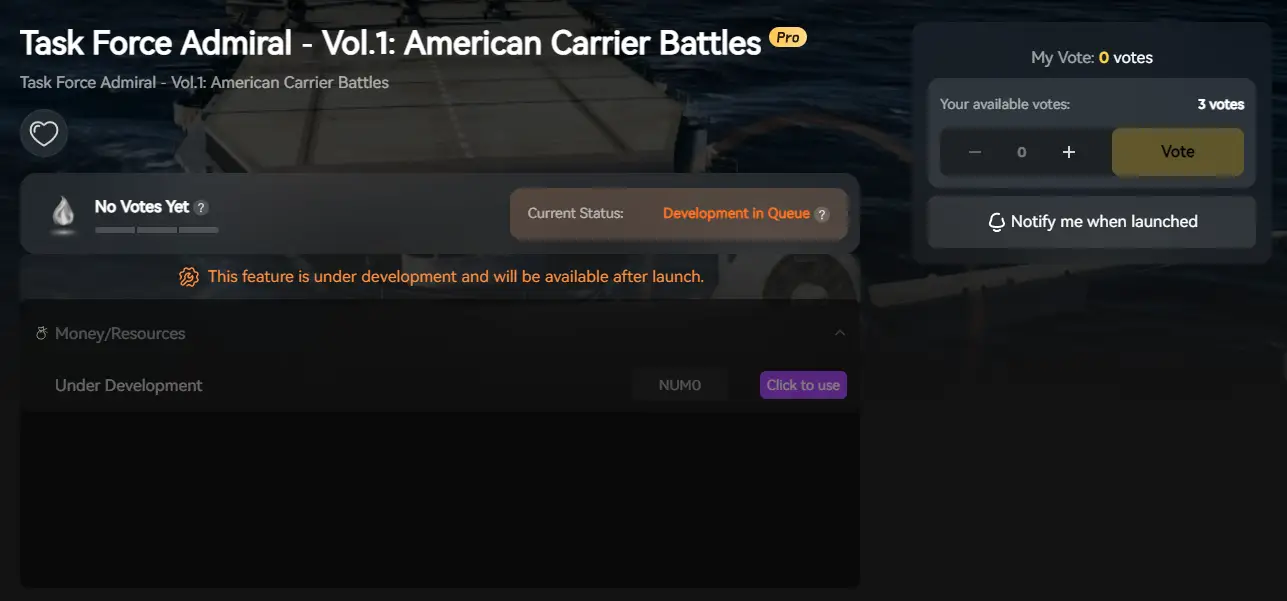
XMODhub will offer tools designed for commanders:
- Game Speed Control: Use the Speedhack feature to slow down the action (0.5x) during intense air raids. This not only helps you issue orders but also reduces the CPU load spike, preventing crashes during heavy combat.
- Save Manager: Automatically backup your campaign saves. Never lose your task force progress to a random “Fatal Error” again.
FAQ
Q: Does Task Force Admiral support Windows 7?
No. The game relies on modern DirectX 12 features found in Windows 10 (build 1909+) and Windows 11.
Q: My game crashes when I zoom in on planes.
This is often a VRAM issue. Try lowering your Texture Quality to Medium so your graphics card memory doesn’t overflow.
Q: Will reinstalling fix the crash?
Rarely. Try “Verifying Game Files” (Method 1) first. It does the exact same thing but saves you hours of download time.
Conclusion
Don’t let technical storms sink your fleet. By verifying game files and updating your C++ libraries, you can swiftly resolve the Task Force Admiral crash on startup error and return to the bridge.
If rough seas persist, let XMODhub stabilize your command. With support for over 5,000+ games, we aren’t just here for this battle—we’ve got your back across every theater of war.

From the submarine hunts in UBOAT, to the grand strategy of War on the Sea and the ship-building yards of Ultimate Admiral: Dreadnoughts, our tools ensure you always sail with an advantage.
All hands to battle stations. Good hunting.

I am a passionate gamer and writer at XMODhub, dedicated to bringing you the latest gaming news, tips, and insights.
Connect with me:
LinkedIn Profile ↗
 Nancy Miller