
 Catherine Hu
The Gold River Project throws you into a beautiful but unforgiving Pacific Northwest wilderness. Whether you are playing solo or hosting a 4-player co-op session, there is nothing worse than sinking 20 hours into building the perfect base camp only to lose it all to a “Fatal Error” or a corrupted save file.
Whether you want to manually backup your world before a risky expedition, transfer the “Host” save to a friend, or tweak the config files for better FPS, you first need to find where the data is hidden.
Below is the verified file path for The Gold River Project on Windows and Steam Deck, along with a safer, automated method to manage your backups.
Editor’s View: Why This Matters
“I’ve spent hours exploring the reserves in The Gold River Project, and I know that Unreal Engine 5 games can be demanding. One common mistake players make is looking for saves in the game’s installation folder—they aren’t there.
Because this game uses Unreal Engine 5, the files are hidden in the ‘Local’ AppData folder. Many generic guides will incorrectly send you to ‘LocalLow’ (which is for Unity games). I wrote this guide to ensure you find the actual folder immediately, so you can secure your progress before the next Early Access patch drops.”
— Catherine Hu, Senior Editor & Survival Game Enthusiast at XMODhub
Windows PC Save File Location
For the Steam version of The Gold River Project, the save files are located in the Local AppData folder.
C:\Users\[YourUsername]\AppData\Local\TheGoldRiverProject\Saved\SaveGames\Note: Occasionally, the folder might be named “FairviewGames”. If you don’t see the game title directly, check inside the developer folder.
How to navigate there quickly:
01
Press Windows Key + R on your keyboard to open the Run dialog.
02
Type %localappdata% and press Enter. (Do not type %appdata%, as that defaults to Roaming).
03
Scroll down and open the TheGoldRiverProject folder, then navigate to Saved > SaveGames.
What to look for: Inside, you will find .sav files. These contain your world state, player inventory, and base building data.
The Gold River Project Config File Location
If the game is stuttering or you want to disable Motion Blur and Depth of Field to improve visibility, you need to edit the configuration files.
C:\Users\[YourUsername]\AppData\Local\TheGoldRiverProject\Saved\Config\WindowsNoEditor\Key Files:
- GameUserSettings.ini: This file controls resolution, window mode, and graphical quality.
- Engine.ini: Advanced users can add commands here (like r.MotionBlurQuality=0) to force disable effects that aren’t in the menu.
Steam Deck / Linux Save Location
The Gold River Project is playable on Steam Deck. To access your save files, you must navigate through the Proton compatibility layer.
/home/deck/.local/share/Steam/steamapps/compatdata/1253220/pfx/drive_c/users/steamuser/AppData/Local/TheGoldRiverProject/Saved/SaveGames/Crucial Detail: The Steam App ID for The Gold River Project is 1253220. You must look for this specific number in the compatdata folder.
Critical: Co-op Host vs. Client Saves
A frequent issue in co-op survival games is determining who owns the progress.
- The Host: Holds the “World Save” (Base, Terrain, Time of Day). This is the most important file in the path above.
- The Client: Only holds their character inventory (sometimes this is also stored on the Host machine depending on server settings).
- Transferring Host: If the original Host can’t play, they must zip the entire Saved folder and send it to the new Host. The new Host must paste it into the exact same location to resume the session.
The Smarter Way: One-Click Backup with XMODhub
Early Access survival games are prone to bugs that can wipe your inventory or corrupt a world chunk. A single crash could erase 50 hours of base building.
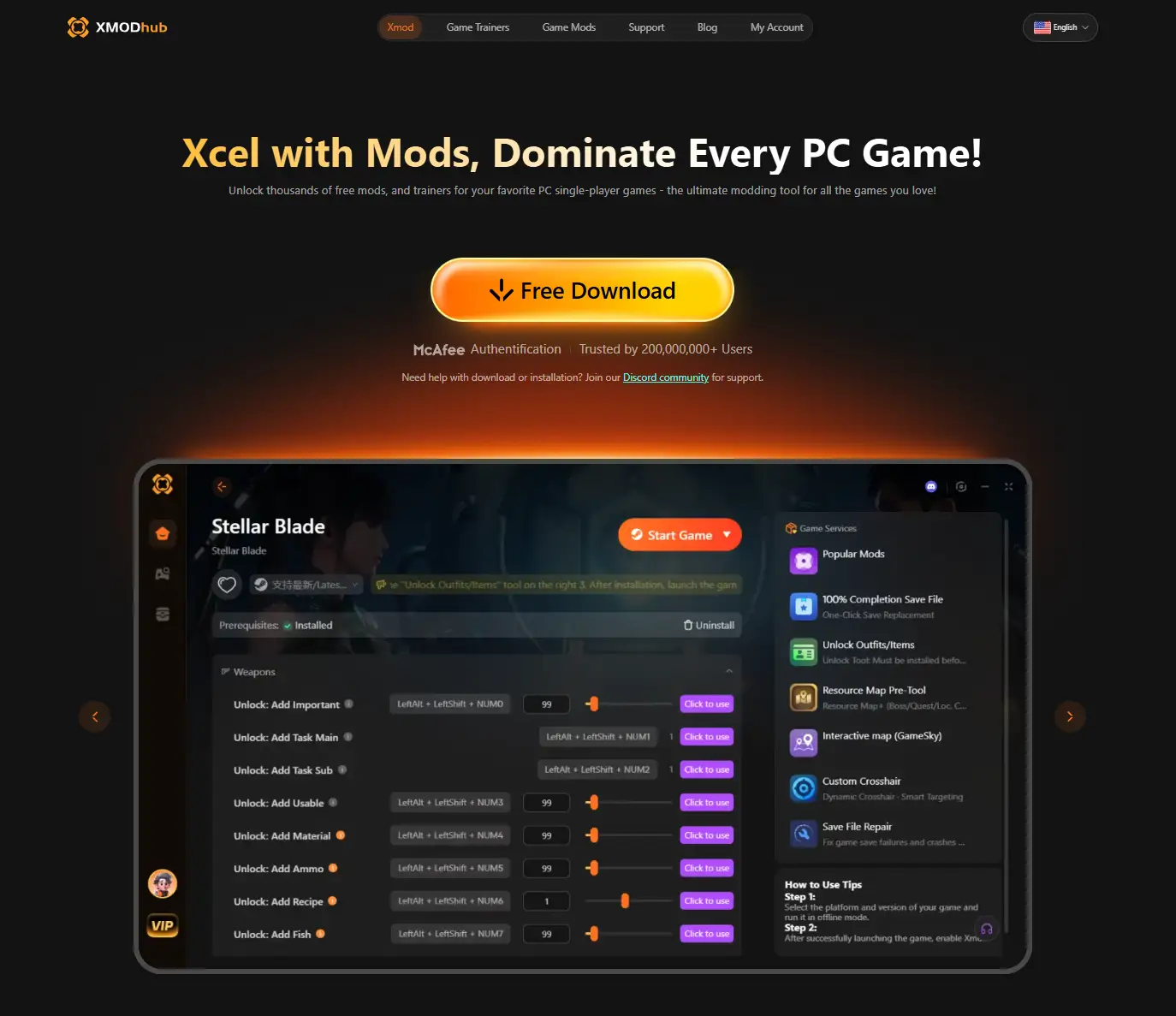
XMODhub offers a built-in Save Manager designed for games like The Gold River Project.
- Auto-Backup: XMODhub automatically detects when you close the game and zips your save folder.
- Host Manager: Easily swap between different “World Saves” if you host multiple groups of friends.
- Visual Rollback: Base got glitched into a rock? Roll back to the save from 1 hour ago instantly.
FAQ
Q: Can I edit the save file to get more money?
The Gold River Project uses Unreal Engine .sav files, which are often binary encoded. You usually cannot edit them with Notepad without corrupting the file. We recommend using XMODhub’s secure editor or a dedicated Save Editor tool.
Q: Why is my Config folder empty?
If you have never launched the game, the folders won’t exist yet. Launch the game once, change a setting in the menu, and exit. The GameUserSettings.ini file will then appear.
Q: Does the game support Steam Cloud?
Yes, but Steam Cloud can sometimes sync a corrupted file over a good one. We strictly recommend keeping a local manual backup (or using XMODhub) for major saves.
Conclusion
Finding the The Gold River Project save file location in AppData\Local is the first step to securing your survival journey. Whether you are transferring the Host role to a friend or tweaking the Engine.ini for better performance, knowing where your data lives is essential.
However, manual file management is risky. For a “set it and forget it” solution, we highly recommend the XMODhub Save Manager.
Keep your camp safe and focus on the survival. Survive smarter. Backup often.

I am a passionate gamer and writer at XMODhub, dedicated to bringing you the latest gaming news, tips, and insights.
Connect with me:
LinkedIn Profile ↗


 Nancy Miller