
 Catherine Hu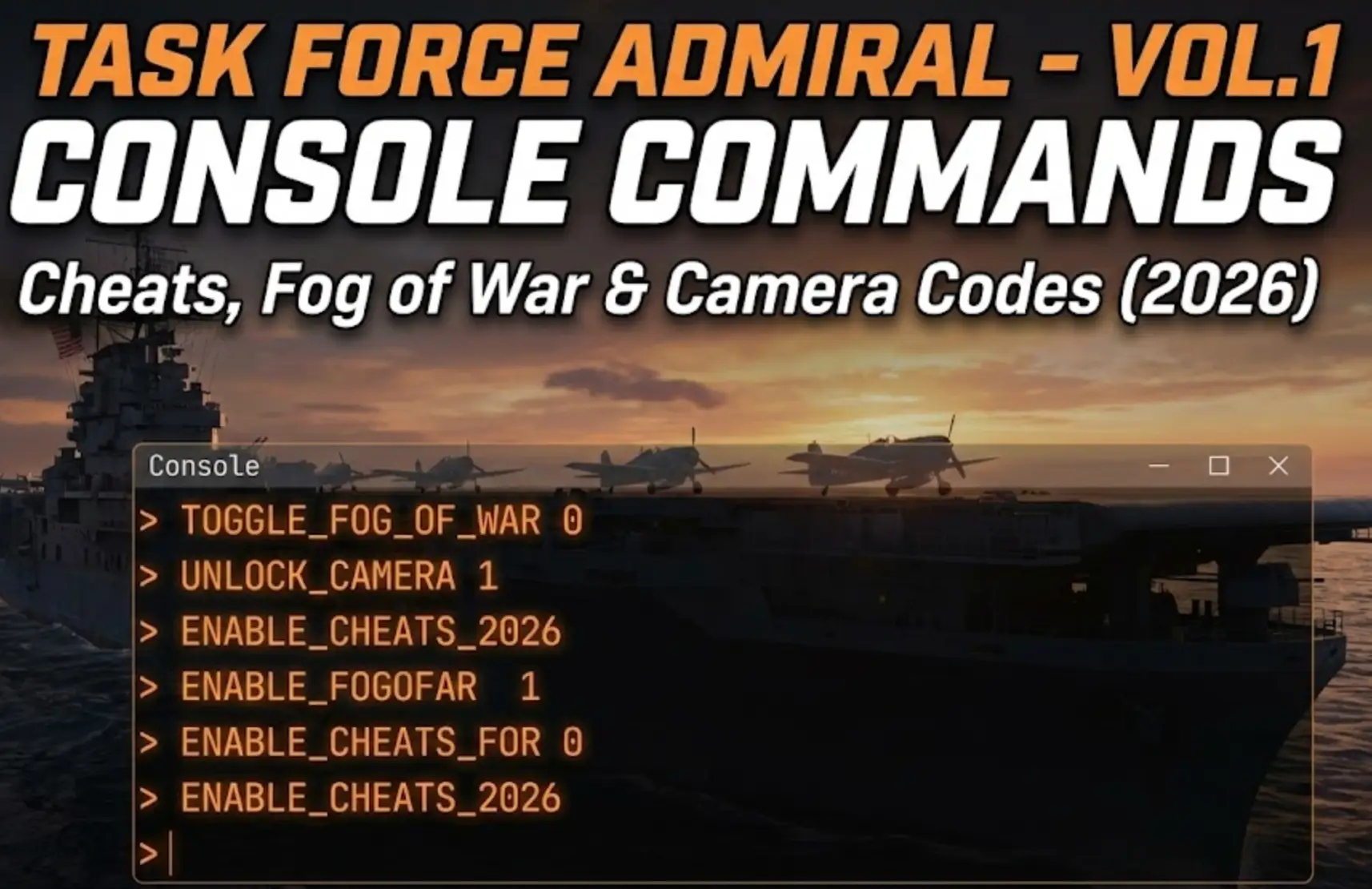
Commanding a carrier task force in Task Force Admiral – Vol.1: American Carrier Battles is a brutal test of historical strategy. Whether you are stuck trying to defend the USS Yorktown or simply want to create a “What If?” scenario where your SBD Dauntless bombers have infinite ammo, using Task Force Admiral console commands is a popular way to bypass the harsh realism.
However, accessing the developer debug menu isn’t straightforward because the game prioritizes simulation integrity.
Below is the complete guide on how to force the console open, the known command list, and the safer alternative, XMODhub trainer, to modify your fleet without crashing the AI.
You may also like:
Task Force Admiral – Vol.1: Cheat Engine Table vs. XMODhub Trainer (Best Free Alternative)
Editor’s Note: Can You Cheat in Task Force Admiral?
“Task Force Admiral runs on Unreal Engine. In the current build, the developers (Drydock Dreams Games) have hidden the console to prevent players from accidentally breaking the complex enemy AI logic.
While you can use third-party tools like the ‘Universal Unreal Unlocker’ (UUU) to force the console open, doing so often disables Steam Achievements. At XMODhub, we recommend using an external memory trainer to inject specific cheats like ‘No Fog of War’ safely.”
— Catherine Hu, Senior Simulation Specialist at XMODhub
How to Enable the Console in Task Force Admiral
To access the debug menu, try these standard Unreal Engine methods:
- Method A (Default): Press the Tilde key (~), F10, or F1 during gameplay.
- Method B (Launch Options):
Right-click Task Force Admiral in Steam > Properties.
In Launch Options, type:-consoleor-debug. - Method C (Config File):
Navigate to%localappdata%\TaskForceAdmiral\Saved\Config\WindowsNoEditor\Input.iniand manually bind the ConsoleKey.
(If none of these work, the console is locked in the shipping build. Skip to the XMODhub Solution below.)
Essential Console Commands List
If you manage to open the command line (usually via UUU), here are the most useful cheats for strategy and screenshots.
Camera & Visibility (Crucial for Wargames)
- ToggleDebugCamera – Unlocks the camera from your ship, allowing you to fly freely anywhere on the map (Perfect for screenshots).
- r.Fog 0 – Disables visual atmospheric fog (Note: Does not remove gameplay ‘Fog of War’).
- ShowDebug – Displays technical coordinates and AI states.
Gameplay & Survival
- God – Grants invincibility to the player entity (Results vary in strategy games; may not protect all ships).
- Slomo [Number] – Changes game speed.
Slomo 0.5 = 50% Speed (Cinematic Slow Motion).
Slomo 20 = Super Fast Forward (Skip long patrols). - DamageTarget [Amount] – Deals specific damage to the selected unit.
Ship & Air Wing Class Names (Pseudo-IDs)
Unlike RPGs, this simulator uses Blueprint Class Names for units. Manipulating these via console is difficult without the exact internal path.
Common Unit Classes (For reference):
- Carrier: BP_Ship_Yorktown_C / BP_Ship_Lexington_C
- Aircraft: BP_Plane_F4F_Wildcat_C / BP_Plane_SBD_Dauntless_C
- Weaponry: BP_Torpedo_Mk13_C
(Tired of guessing Blueprint names? The XMODhub Trainer has a built-in “Refill Air Wing” button that automatically detects your carrier’s loadout.)
The Problem: Why Console Commands Break Simulators
Using the developer console comes with a cost in high-fidelity wargames:
- AI Confusion: Forcing “God Mode” can break the enemy AI’s pathfinding, causing Japanese fleets to sail in circles because they cannot calculate a damage solution.
- Save Corruption: Spawning units outside of the mission script can cause the campaign to crash when loading the next day.
- Inconvenience: You have to re-type complex commands every time you load a save.
The Better Alternative: XMODhub Trainer (No Typing)
Stop memorizing Unreal Engine commands. XMODhub acts as a visual overlay that bypasses the need for the developer console entirely.
| Feature | Console Commands | XMODhub Trainer |
|---|---|---|
| Method | Typing text manually | One-Click Hotkeys |
| Fog of War | Hard to disable | Reveal Map Toggle |
| Air Wings | Risk of Crash | Instant Deck Service |
| Game Speed | Slomo command | Speed Slider |
| Game Version | Breaks with updates | Auto-Updated via Cloud |
How to Use XMODhub Trainer for Task Force Admiral
Don’t waste time editing config files. Here is how to dominate the Pacific in 3 simple steps:
- Download: Get the free XMODhub Client.

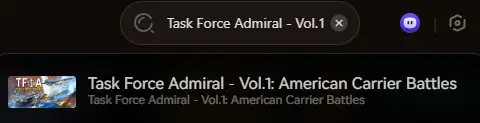
- Launch: Open XMODhub—it automatically detects your installed copy of Task Force Admiral.
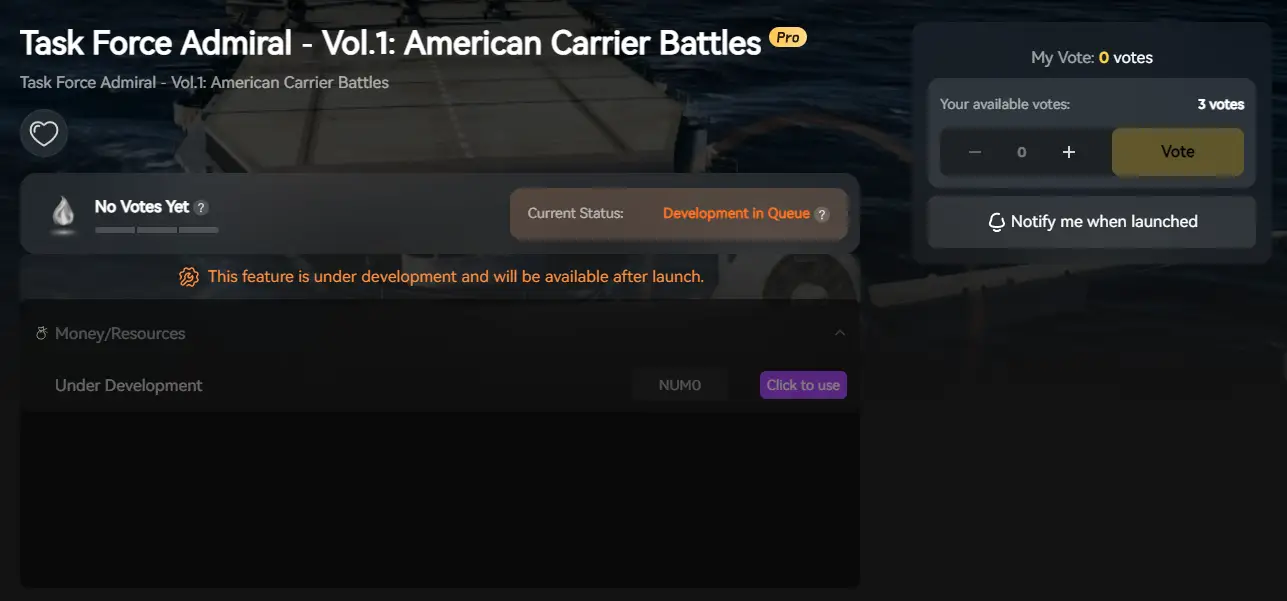
- Activate: Click “Reveal Map” to see the entire enemy fleet instantly.
FAQ
Q: Can I remove Fog of War with console commands?
A: Usually, no. The command r.Fog 0 only removes visual fog. To actually see enemy icons on the map (“God’s Eye View”), you need the XMODhub Trainer’s memory injection feature.
Q: Is there a cheat for infinite aircraft fuel?
A: There is no native console command for this. You must use a trainer to freeze the fuel values of your air wings.
Q: Can I use these cheats in Multiplayer?
A: No. Task Force Admiral cheats are client-side only. Do not attempt to use them in any online environment.
Conclusion: Command the Seas, Your Way
While historical accuracy is the soul of Task Force Admiral, sometimes you just want to relax and watch the fireworks without worrying about fuel logistics. XMODhub offers a safer, visual way to customize your wargaming experience.
Supports Similar Games

Task Force Admiral is just the beginning. XMODhub supports over 5,000+ games, including similar naval strategy titles like:
- War on the Sea (Command the Pacific theater)
- Ultimate Admiral: Dreadnoughts (Build custom warships)
- Silent Hunter 5 (Submarine warfare simulation)
Whether you are commanding a Task Force or a U-Boat, XMODhub covers your entire strategy library.

I am a passionate gamer and writer at XMODhub, dedicated to bringing you the latest gaming news, tips, and insights.
Connect with me:
LinkedIn Profile ↗
 Nancy Miller