Catherine Hu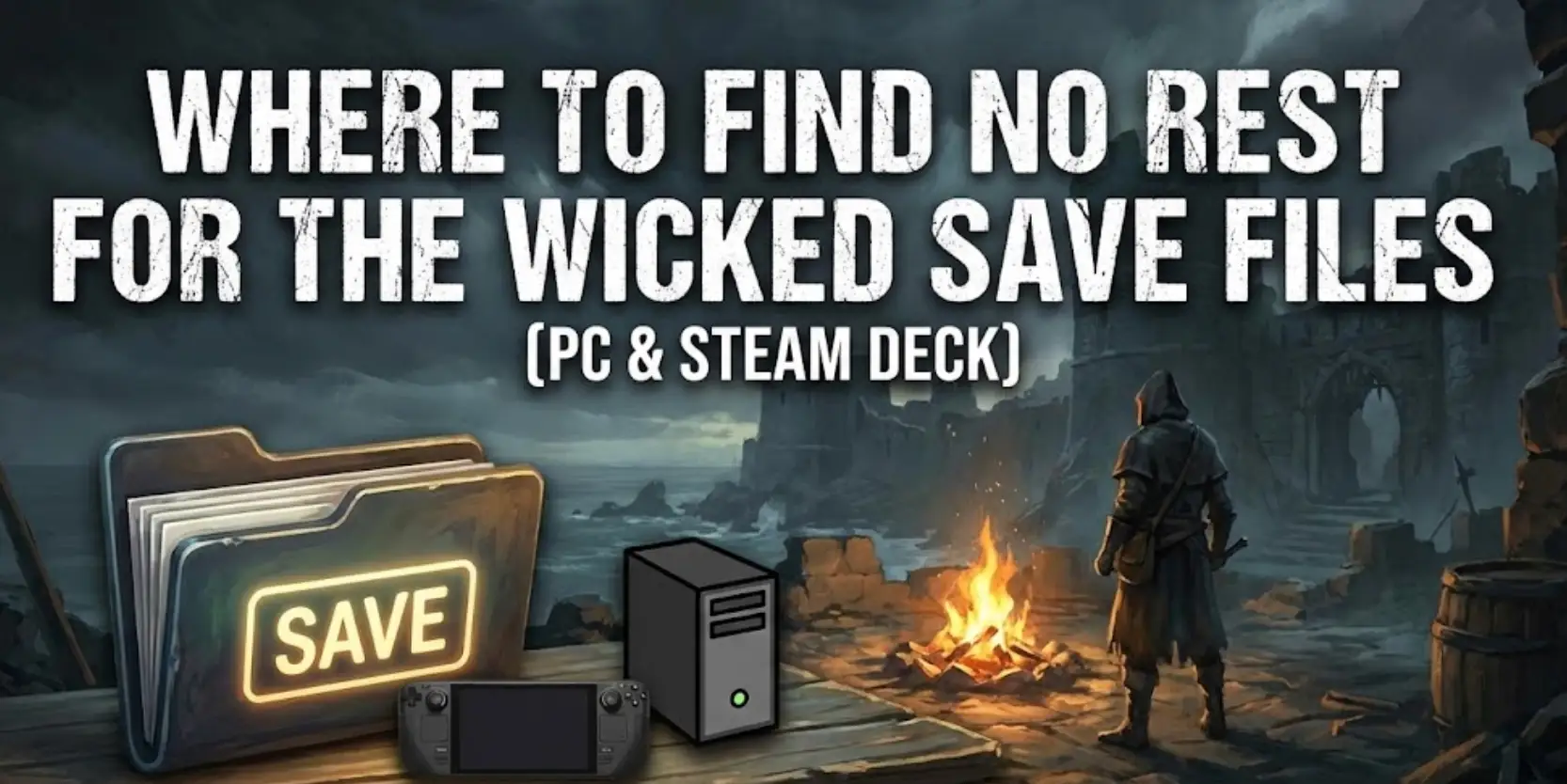
No Rest for the Wicked is a punishing Action RPG. Between the brutal combat and the intricate “Realm” building system, every minute of progress feels earned. However, because the game is in Early Access, it is prone to crashes, performance hitches, and the occasional corrupted save.
Whether you want to manually backup your Level 30 Cerim before a risky boss fight, transfer your Realm to a friend, or tweak the config file to squeeze out more FPS, you first need to locate where the data is hidden on your drive.
Below is the verified file path for No Rest for the Wicked on Windows and Steam Deck, along with a safer, automated method to manage your backups.
You may also like:
No Rest for the Wicked Console Commands (2026): Cheat Codes & Item IDs List
Editor’s View: The “LocalLow” Distinction
“I’ve been playing No Rest for the Wicked since Day 1. If you are coming from other RPGs, you might be looking for a manual ‘Save’ button. You won’t find one. The game relies entirely on auto-saves at Whispers.
Because Moon Studios uses a specific engine structure, the files are not in the standard ‘Local’ folder used by Unreal Engine games. They are hidden in ‘LocalLow’. I wrote this guide because I almost lost my Tier 3 Sacrament Realm to a sync error—don’t let that happen to you. Secure your ‘DataStore’ folder now.”
— Catherine Hu, Senior Editor & ARPG Enthusiast at XMODhub
Windows PC Save File Location
For the Steam version of No Rest for the Wicked, the save files are located in the AppData\LocalLow directory.
C:\Users\[YourUsername]\AppData\LocalLow\Moon Studios\NoRestForTheWicked\DataStore\How to navigate there quickly:
01
Press Windows Key + R on your keyboard to open the Run dialog.
02
Type %userprofile%\AppData\LocalLow and press Enter. (Note: Do not just type %appdata%, as that defaults to Roaming).
03
Open the Moon Studios folder, then navigate to NoRestForTheWicked > DataStore.
What to look for: Inside, you will see a folder with a specific GUID (a long string of numbers). Your Characters (Cerim) and Realms are stored as separate binary files inside this specific folder.
No Rest for the Wicked Config File Location (Graphics & Settings)
The game is visually stunning but demanding on hardware. If you need to manually lower resolution scaling below the menu limits or disable specific post-processing effects to improve FPS, you need the config file.
C:\Users\[YourUsername]\AppData\LocalLow\Moon Studios\NoRestForTheWicked\Config\File to Edit: GraphicsSettings.json. Open this file with Notepad. You can manually adjust “ResolutionScale” or “RenderQuality” here if the in-game settings are causing crashes.
Steam Deck / Linux Save Location
No Rest for the Wicked is heavy, but playable on Steam Deck. To access files via Desktop Mode, you need to look inside the Proton prefix.
/home/deck/.local/share/Steam/steamapps/compatdata/1371980/pfx/drive_c/users/steamuser/AppData/LocalLow/Moon Studios/NoRestForTheWicked/DataStore/Tip: The Steam App ID for No Rest for the Wicked is 1371980. You must look for this specific number in the compatdata folder.
The Smarter Way: One-Click Backup with XMODhub
Since the game has no manual save button, you are at the mercy of the auto-save system. If the game glitches and saves after you lose a legendary item, that loss is permanent.
XMODhub offers a built-in Save Manager designed for Early Access titles like No Rest for the Wicked.
- Auto-Backup: XMODhub detects when you exit to the main menu and instantly zips your DataStore folder.
- Realm Manager: Keep separate backups for your “Solo Realm” and your “Co-op Realm” to avoid overwriting progress.
- Visual Rollback: Restore a save from 15 minutes ago with a single click.
How to Use XMODhub for the Game?
Secure your save data in four simple steps:

- Setup: Download and launch XMODhub, then navigate to the “No Rest for the Wicked” dashboard.
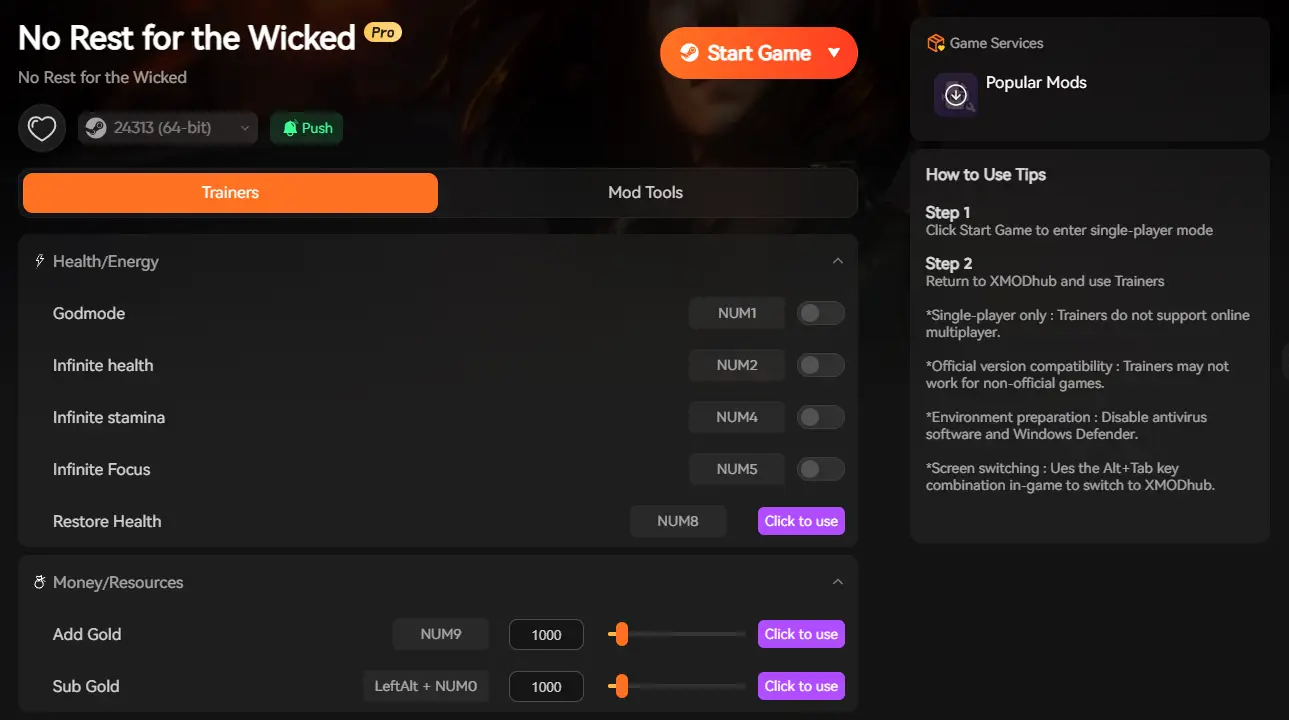
- Auto-Backup: Toggle on “Auto-Backup” in the Save Manager. Your data will now automatically backup every time you quit to the Main Menu.
- Realm Management: Use the Realm Manager to create separate profiles for different builds or worlds to prevent accidental overwriting.
- Instant Restore: If a bug occurs, open the “Save History” tab, locate a pre-glitch timestamp on the timeline, and click “Restore” to immediately revert your game state.
FAQ
Q: Can I transfer my character to a friend’s Realm?
Yes. However, the save system links Characters and Realms tightly. To transfer strictly the character, you must copy the specific Character file from the DataStore folder. Warning: We recommend backing up the entire folder to avoid corruption.
Q: What happens if I delete the config file?
If you mess up your settings and the game won’t launch, simply delete GraphicsSettings.json in the Config folder. The game will generate a fresh default file upon the next launch.
Q: Does modifying save files ban me?
The game currently focuses on PVE and Co-op. Modifying your local save file is generally safe from bans, but always ensure you are offline if you are experimenting with save editing.
Conclusion
Finding the No Rest for the Wicked save file location in LocalLow is the first step to safeguarding your progress. Whether you are fixing a performance issue in the config or backing up your Realm before a patch, knowing where your data lives gives you control.
However, manual file management is risky.
For a seamless “set it and forget it” experience, we highly recommend XMODhub. It functions as both a versatile modding tool and a reliable Save Manager, securing your Sacrament against unpredictable Early Access bugs. Backup smarter and play safer.

I am a passionate gamer and writer at XMODhub, dedicated to bringing you the latest gaming news, tips, and insights.
Connect with me:
LinkedIn Profile ↗