Catherine Hu
Editor’s View
“Let’s be real for a second. I love No Rest for the Wicked. The art style is incredible, and the combat is punishing but rewarding. But you know what’s too punishing? Finally beating a boss after 30 tries, only to wake up the next day and find a game update has corrupted your save file.
As gamers who lived through the early days of Baldur’s Gate 3 and countless other Early Access titles, we know the drill: new content often breaks old saves. This isn’t just about backing up files; it’s about respecting your own time. Don’t let a buggy patch erase your hard work. Secure your Sacrament first, then enjoy the update.”
— The XMODhub Editorial Team
Quick Answer: The Safest & Fastest Way to Protect Your Save
The best way to protect progress in No Rest for the Wicked before an update is not manually copying folders every time you quit. The smartest, safest method is using a tool with automatic monitoring backup, like XMODhub.
It automatically detects when you exit to the main menu and instantly zips your entire DataStore folder into a timestamped archive. This completely eliminates human error and provides a visual timeline for an instant “one-click rollback,” neutralizing the risk of update corruption.
You may also like:
No Rest for the Wicked Console Commands (2026): Cheat Codes & Item IDs List
Why Are NRftW Saves So Fragile During Updates?
Let’s be real: this isn’t necessarily a dig at the developers, Moon Studios. It’s the nature of the beast with “Early Access” titles. When core game code changes drastically—adding new systems or reworking old mechanics—old save data structures often become incompatible with the new version.
To make matters worse, the save mechanism in No Rest for the Wicked is uniquely vulnerable:
- No Manual Save Slots: You can’t just create ten different manual saves before a boss fight. You are entirely at the mercy of the game’s auto-save system.
- Complex Structure: It’s not just one file; it’s a complex folder structure containing character data and realm data.
- The Steam Cloud Double-Edged Sword: Sometimes, Steam Cloud can mistakenly overwrite your new local save with an older cloud version, or worse, sync a corrupted file across devices when the game crashes.
This is why having a local backup completely under your control is non-negotiable before hitting that “Update” button.
Method 1: The Manual Backup (The Hard Way)
If you like doing things yourself and don’t mind navigating hidden Windows folders every time you play, you can back up manually. It’s important to know the basics.
Where Your Save lives:
(Note: This folder is usually hidden. You must ensure Windows Explorer is set to “Show hidden items.”)
C:\Users\[Your Username]\AppData\LocalLow\Moon Studios\NoRestForTheWicked\DataStore
The Manual Steps:
- Completely close the game and Steam.
- Navigate to the path above.
- Locate the entire DataStore folder.
- Right-click and hit “Copy.”
- Create a new folder on your desktop (or a safe location, preferably not on your C: drive) named something like “NRftW_PreUpdate_Backup_[Date]”.
- Paste the DataStore folder inside.
!
The Risk:
The only problem with this method is you. Humans forget things. If you played late last night and forgot to backup, and the update drops this morning, your progress is vulnerable.
Method 2: The “Set It and Forget It” Way with XMODhub (The Smart Way)
If you are like us and just want to focus on playing the game without acting as an IT file manager, XMODhub was designed for you. We built XMODhub because we were sick of losing progress in Early Access games. It’s not just a modding platform; it’s a Save File Insurance Policy.
Why It’s Safer:
- Fully Automated (Auto-Backup): You don’t need to remember anything. XMODhub monitors the game in the background. The second you safely quit to the main menu, a backup is secured.
- Visual Rollback: This is the game-changer. If an update bricks your save or your legendary gear vanishes due to a bug, you don’t need to dig through folders. Open the XMODhub “Save History” tab, look at a clear timeline, find the checkpoint from 10 minutes before the update, and click “Restore.” Boom. You’re safe.
- Realm Manager: Worried an update might mess up the co-op world you share with friends? Use XMODhub to create separate “Realm” profiles for your solo play and co-op play, keeping them totally isolated.
How to set it up:
- Download and install the latest version of XMODhub.

- Navigate to the No Rest for the Wicked dashboard within the app.
- Ensure the “Auto-Backup” toggle under the Save Manager section is turned ON.
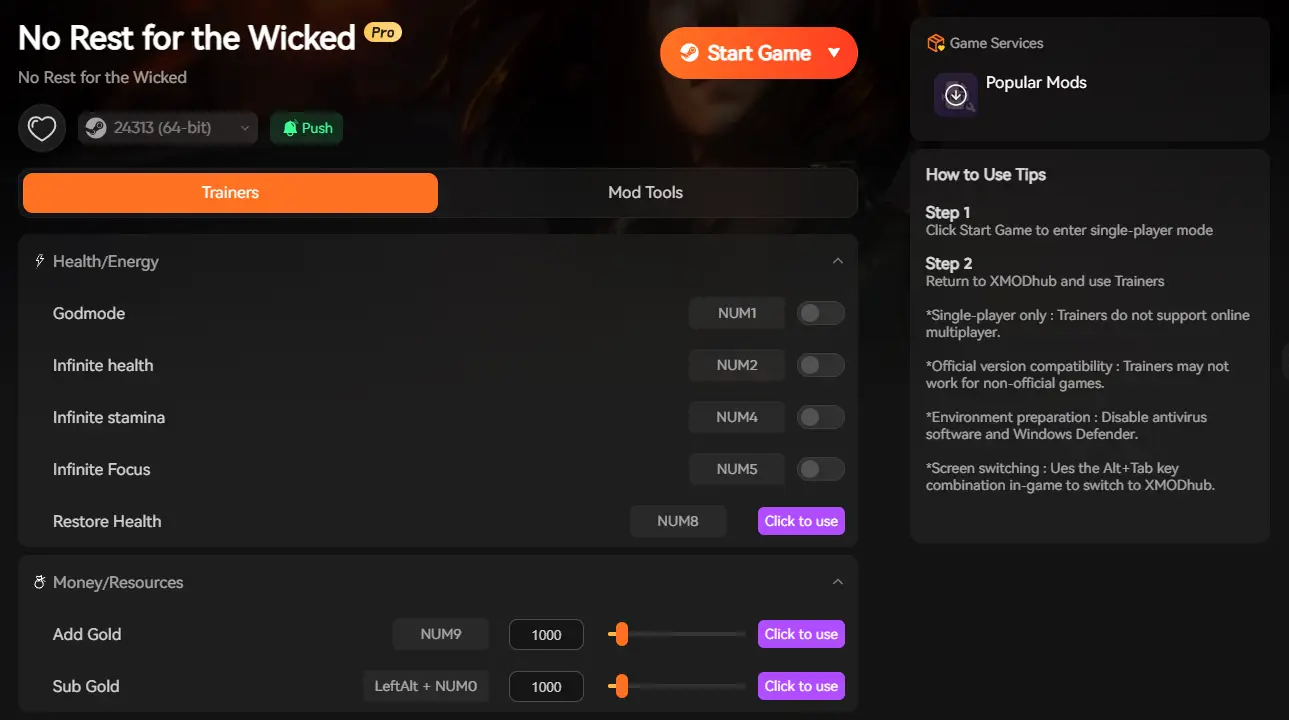
- That’s it. You can now update your game with peace of mind.
FAQs: Your Update Anxieties Answered
Q: Steam Cloud is showing a conflict after the update. Which file do I choose?
A: This is a classic trap. After a major update, always prioritize your “Local File” (assuming you just played and quit normally). If you are unsure, the absolute best move is to do nothing, manually back up your current local folder (or check your XMODhub backups), and then let Steam sync.
Q: What if the update already corrupted my save? Can I fix it?
A: If you did not make any backups (manual or automated) before the corruption happened, recovery is highly unlikely. This is exactly why we wrote this guide! However, if you had XMODhub running, just use the “Visual Rollback” feature to restore a save point from before the corruption occurred.
Q: Will the update wipe my building progress in Sacrament?
A: Developers usually try hard to avoid this, but in Early Access, anything is possible. If you are deeply invested in your town’s layout, creating a distinct “snapshot” backup before a patch is crucial. You can even label a specific backup in XMODhub as “Perfect Sacrament Layout” just in case.
Conclusion: Your All-in-One PC Gaming Companion
back up your data right now
No Rest for the Wicked
XMODhub supports over 5,000 PC games.


I am a passionate gamer and writer at XMODhub, dedicated to bringing you the latest gaming news, tips, and insights.
Connect with me:
LinkedIn Profile ↗


 Nancy Miller