Nancy Miller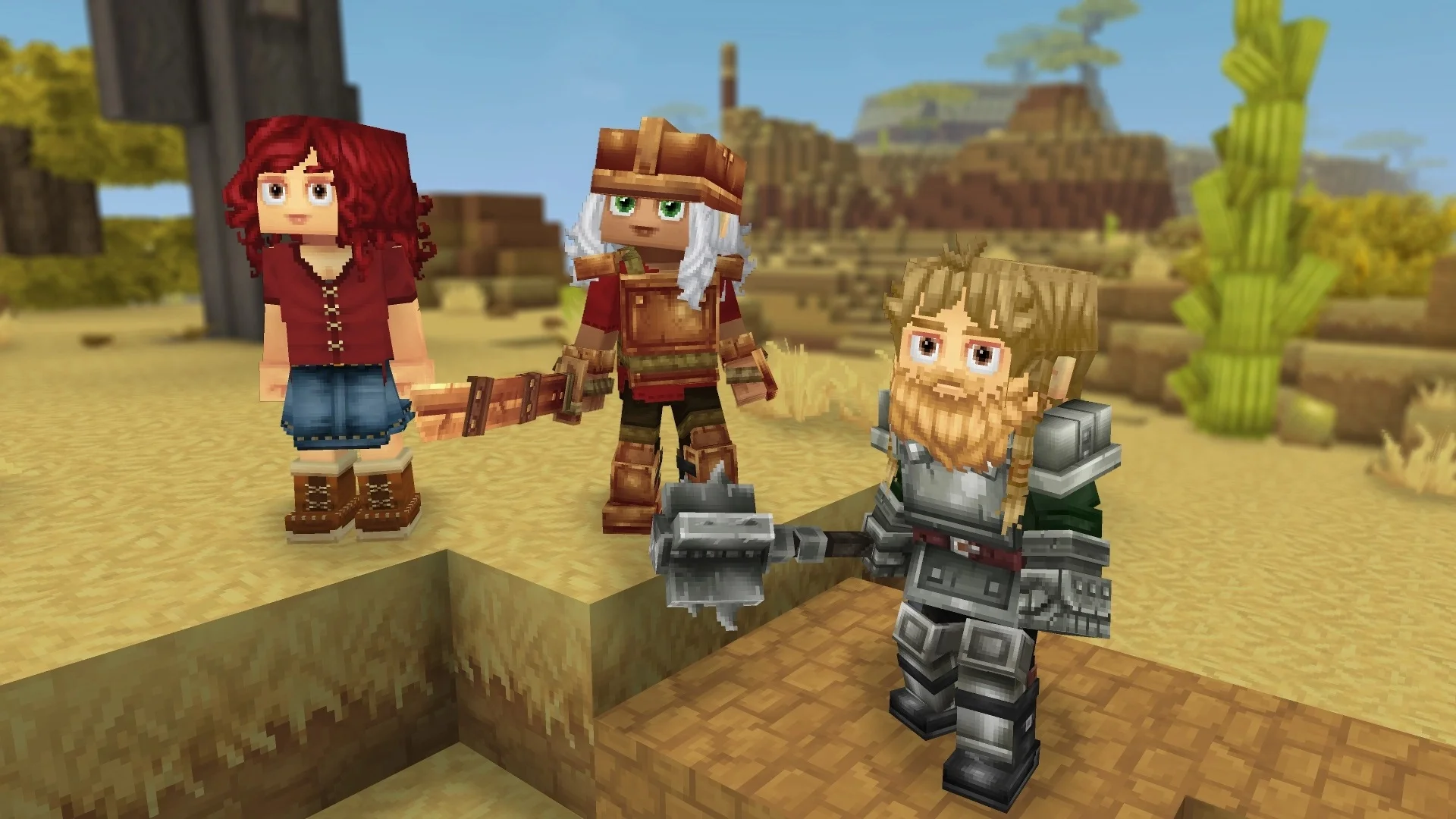
We’ve waited years for Hytale, so staring at a crash report or a black screen on launch day is the ultimate buzzkill. Whether you’re stuck on the Riot Client initialization or freezing as soon as the world loads, these issues are usually tied to driver conflicts or the new engine’s requirements. Honestly, I got stuck on the initial loading screen too the first time I booted it up—it turned out to be a simple driver conflict I overlooked. Below, we’ll walk through the exact steps to get you into the world of Orbis without any more interruptions, covering everything from basic file verification to advanced memory management.
Key Takeaways
- Verify Integrity – Corrupted download files are the #1 cause of startup crashes.
- Update Drivers – The Orbis engine requires the latest GPU drivers to render correctly.
- Java Check – Even with the new engine, legacy Java variables can cause conflicts.
- Launcher Repair – Use the Riot Client’s built-in repair tool for quick fixes.
Let’s break down the details below.
Does Your PC Meet the Hytale System Requirements?
Before diving into complex software fixes, it is crucial to ensure your hardware can actually handle the game. Unlike older voxel games, Hytale’s engine features advanced lighting and physics that demand more from your system. If you are trying to run the game on integrated graphics from 2015, you might be fighting a losing battle.
Minimum Specs to Run Hytale Without Crashing
If your PC falls below these specs, crashes are likely unavoidable due to memory leaks or GPU timeouts. The game needs a certain amount of VRAM to load textures; without it, the application simply terminates to protect your hardware.
Recommended Hardware for Hytale Performance
For the best experience without frame drops or freezing, aiming for the recommended specs is vital. An SSD is particularly important for sandbox games like Hytale, as it drastically reduces the time it takes to load chunks and assets as you explore the world. Slow HDDs can cause “hangs” where the game freezes for seconds at a time while waiting for data.
Hytale Crash Fix: Step-by-Step Solutions
How to Repair the Hytale Launcher
Most startup errors originate from the launcher itself failing to initialize the game environment. Since Hytale operates through the Riot Games client, you can use built-in tools to fix this.
Open the Riot Client settings, navigate to the Hytale installation tab, and select “Repair.” This process scans for missing or corrupted launcher files that might be causing the “Hytale won’t launch” error. If the automatic repair fails, you may need to manually clear the cache. Press Win + R, type %localappdata%, and delete the Riot Games folder. Relaunching the client will force it to rebuild the cache from scratch, often solving persistent initialization errors.
Updating Graphics Drivers for Hytale
Outdated drivers are the enemy of new game engines. If you are experiencing a black screen or an immediate crash to desktop, your graphics processing unit (GPU) drivers are the likely culprit.
Visit the official NVIDIA or AMD website to download the latest drivers. Avoid using Windows Update for this, as it often installs generic drivers that lack the specific optimizations needed for Hytale. For a truly clean install, consider using Display Driver Uninstaller (DDU) in Safe Mode to remove all traces of old drivers before installing the new ones. This prevents conflicts between legacy driver files and the new installation.
Device Manager > Display Adapters > Right Click GPU > Properties > DriverVerifying Hytale Game Files Integrity
If the launcher is fine but the game still crashes, the game files themselves might be corrupted. This often happens if your internet connection dropped during the download.
In the launcher, look for the “Verify Integrity” option. This will compare your local files against the server’s version and re-download only the damaged chunks, saving you from a full reinstall. This is significantly faster than redownloading the entire 20GB game and ensures that every asset, from textures to sound files, is bit-perfect.
Advanced Troubleshooting for Persistent Crashes
If the basics didn’t work, we need to dig deeper into the Windows environment. These fixes address underlying system conflicts that might be preventing the Orbis engine from hooking into your hardware correctly.
Install Visual C++ Redistributables
Since Hytale’s engine is built on C++, it relies heavily on Microsoft’s Visual C++ libraries. If these are missing or corrupted, the game will fail to launch, often without an error message. Download the latest “All-in-One” Visual C++ Redistributable package from Microsoft’s official site. This installs both x86 and x64 versions of the libraries from 2015 through 2022, ensuring that any Dynamic Link Library (DLL) dependencies the game has are met.
Check for BIOS Updates and AVX Support
Modern game engines like Orbis often utilize Advanced Vector Extensions (AVX) instruction sets for physics calculations. If you are running an older CPU or an outdated BIOS, these instructions might be disabled or improperly supported, causing the game to crash instantly without an error log. Check your motherboard manufacturer’s website for the latest BIOS update to ensure full CPU compatibility and stability.
Increase Virtual Memory (Pagefile)
Hytale can be memory-intensive. If you have 8GB or even 16GB of RAM, running out of physical memory can cause an instant crash. Increasing your virtual memory acts as a safety net.
To do this, type “View advanced system settings” in the Windows search bar. Go to the Advanced tab, click Settings under Performance, then the Advanced tab again. Under Virtual Memory, click Change. Uncheck “Automatically manage paging file size,” select your game drive, and set a custom size. A good rule of thumb is to set the Initial Size to 1.5x your RAM and Maximum Size to 3x your RAM. This prevents the game from crashing when it spikes in memory usage during heavy scene loading.
Flush DNS for Connection-Based Crashes
Sometimes what looks like a crash is actually a network timeout during the authentication handshake. Flushing your DNS cache can resolve these connectivity hiccups.
ipconfig /flushdns

ipconfig /renew

netsh winsock reset
Run Command Prompt as an Administrator and enter the commands above one by one. Restart your computer afterwards. This clears out old networking data that might be directing the Hytale client to a dead server IP.
Troubleshooting Specific Hytale Errors
How Do I Fix the Hytale Black Screen?
A persistent black screen usually indicates a resolution mismatch or a fullscreen optimization issue. To fix this, try forcing the game to launch in windowed mode. You can often do this by adding command line arguments in the launcher settings.
-windowed -w 1920 -h 1080Additionally, disable “Fullscreen Optimizations” by right-clicking the Hytale executable, going to Properties, and checking the box under the Compatibility tab. This prevents Windows from adding its own overlay layer, which often conflicts with the game’s rendering pipeline.
Resolving Java Conflicts with Hytale
Although Hytale’s engine is custom-built (C++ based), many players still have legacy Java environment variables set up for Minecraft. These system-wide variables can sometimes confuse new launchers or background services.
Check your “Environment Variables” in Windows. Press Win + R, type sysdm.cpl, and navigate to the Advanced tab. Click “Environment Variables” and look for any entries named _JAVA_OPTIONS or JAVA_TOOL_OPTIONS. If you find them, delete them. These variables often force global memory limits (like 512MB) that are far too low for modern games, causing Hytale to crash immediately upon initialization.
Common Mistakes When Applying a Hytale Crash Fix
Ignoring Antivirus Interference with Hytale
Security software often flags new game executables as false positives. If Hytale closes immediately after you click “Play,” your antivirus might be silently quarantining the file. Add the entire Hytale installation folder to your antivirus whitelist to prevent this.
Running Hytale on Outdated Windows Versions
Hytale relies on modern DirectX features found in updated versions of Windows 10 and 11. Running an outdated build of Windows can lead to “Missing DLL” errors. Ensure your OS is fully updated via Windows Update.
Overlooking Background App Conflicts in Hytale
Overlay applications like Discord, Steam, or GeForce Experience can hook into the game process and cause instability. If you are facing random crashes, try disabling all overlays before launching the game to rule out software conflicts.
Enhance Your Hytale Experience
Once you’ve got the game running smoothly, you might want to tailor the experience to your liking. XMODHUB offers a suite of tools designed to help you explore the world of Orbis without the usual limitations.
Optimizing Gameplay with XMODHUB
Whether you are a builder who needs unlimited resources or an explorer who wants to traverse the map quickly, XMODHUB provides safe, easy-to-use mods that integrate seamlessly with the game.
❤️ Infinite Health
Never worry about fall damage or tough enemies while you explore dangerous dungeons.
💰 Unlimited Items
Get infinite blocks and crafting materials to build your dream base instantly.
⏱️ Super Speed
Move across the vast map of Orbis at lightning speed to find the perfect biome.
⚔️ Fly Mode
Defy gravity to build tall structures easily or survey the landscape from above.
These featured mods are just the beginning. Whether you’re looking to skip tedious grinding, experiment with different playstyles, or speed up your progression, XMOD’s comprehensive toolkit offers dozens more options tailored to your playstyle.
Safe Modding Practices for Hytale
When using mods or trainers, safety is paramount. XMODhub ensures that all tools are malware-free and updated automatically with game patches, reducing the risk of crashes caused by incompatible third-party software.
Hytale Crash Fix FAQ
Ready to enhance your gameplay?

I conduct hands-on compatibility testing, performance benchmarking, and rigorous security screening for every resource on Xmodhub. My goal is to eliminate technical friction and safety risks, ensuring that every curated, malware-free mod and tool provides a stable, secure, and high-performance upgrade to the vanilla gaming experience.

 Catherine Hu