
 Nancy Miller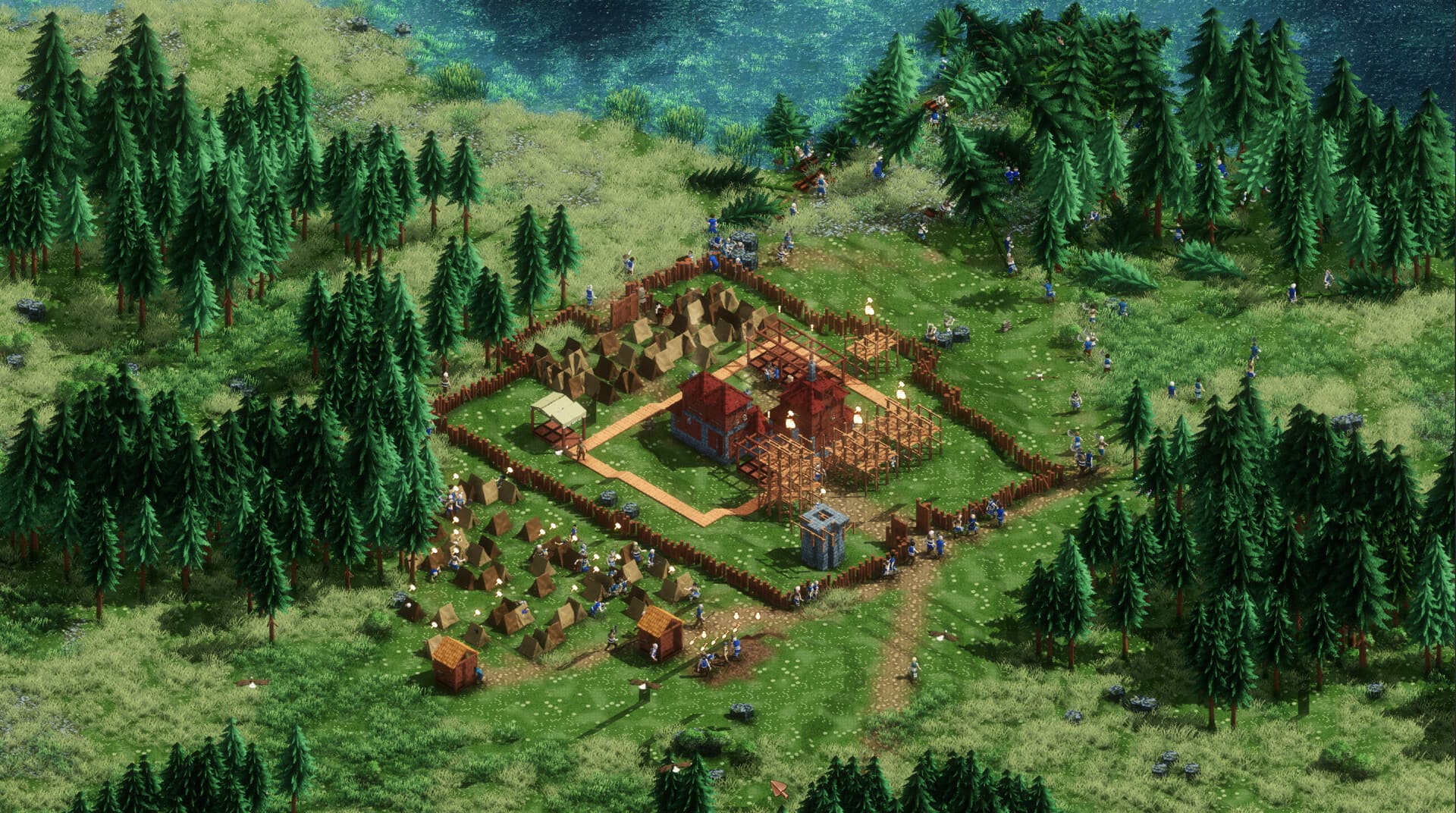
There is nothing quite as frustrating as meticulously planning your medieval kingdom’s layout, only to have Earth of Oryn freeze or crash to the desktop right before a save. Honestly, I’ve lost hours of progress to random Unity engine errors myself. Whether you’re stuck at a black screen on startup or facing mid-game stuttering, these crashes usually boil down to a few common culprits like driver conflicts or missing game files. Let’s get your kingdom running smoothly again.
Key Takeaways
- Verify Game Files – The #1 fix for startup crashes and missing assets.
- Update GPU Drivers – Essential for fixing black screens in Unity-based games.
- Run as Admin – Solves permission issues that cause freezing.
- Check Specs – Ensure your RAM meets the minimum requirements for city building.
- Disable Overlays – A quick win for boosting FPS and stability.
Let’s break down the details below.
Why is Earth of Oryn Freezing or Crashing?
Before we start patching files, it helps to understand why the game is acting up. Earth of Oryn is built on the Unity engine, which is generally stable but can be sensitive to driver versions and memory allocation. Most crashes fall into two categories: startup failures (where the game never launches) and runtime freezes (where the game closes while you’re playing). Since the game is often in active development, updates can occasionally introduce instability that requires client-side tweaks.
Does Your PC Meet Earth of Oryn System Requirements?
City builders can be surprisingly demanding on your CPU and RAM as your kingdom grows. If your system is struggling to keep up with the simulation, the game might force close to protect your hardware.
Understanding the Earth of Oryn Startup Crash
If the game crashes immediately upon launching—often showing a small Unity error window with a progress bar—it usually indicates corrupted game data or a conflict with background software. This is different from a “freeze,” where the game hangs but stays open. Startup crashes are often solved by verifying files or updating redistributables.
Complete Earth of Oryn Crash Fix Guide
Follow these steps in order. They start with the easiest and most effective solutions.
How to Verify Integrity of Game Files for Earth of Oryn
This is the “magic button” for Steam games. It checks every file in your installation against the official server version and replaces anything that’s missing or corrupted.
- Open your Steam Library.
- Right-click on Earth of Oryn and select Properties.
- Go to the Installed Files tab.
- Click Verify integrity of game files.
Steam will take a few minutes to scan. If it finds any bad files, it will automatically download the correct versions.
Solving the Earth of Oryn Black Screen Issue
A black screen with audio usually means your graphics driver is crashing or struggling to render the game’s shader cache. The fix is almost always a clean driver update.
Don’t just rely on Windows Update. Visit the official NVIDIA or AMD website to download the latest drivers manually. If you want to be thorough, use DDU (Display Driver Uninstaller) to completely wipe the old drivers before installing the new ones.
Preventing Earth of Oryn Freezing with Admin Rights
Sometimes Windows prevents the game from writing to the save folder or accessing memory, causing it to freeze. Running the game as an administrator bypasses these restrictions.
Navigate to your game folder (usually under steamapps/common/EarthOfOryn), right-click the .exe file, go to Properties > Compatibility, and check Run this program as an administrator.
How to Optimize Earth of Oryn Low FPS?
Low FPS can sometimes feel like a crash, especially if the game stutters to a halt. Optimizing performance can prevent the engine from becoming overwhelmed.
Adjusting Graphics Settings for Earth of Oryn
If you are experiencing instability, try lowering these specific settings first:
- Shadow Quality: Set to Medium or Low. Shadows are expensive to render.
- Water Reflections: Turn these off or to Low if possible.
- V-Sync: Try toggling this. Sometimes enabling it stabilizes the frame rate and prevents GPU overheating.
Disabling Overlays to Boost Earth of Oryn Performance
Overlays from Steam, Discord, or NVIDIA GeForce Experience sit on top of the game and consume resources. Disabling them can resolve conflicts.
To disable the Steam overlay: Go to Settings > In-Game and uncheck “Enable the Steam Overlay while in-game.”
Common Mistakes When Applying an Earth of Oryn Crash Fix
Ignoring Visual C++ Redistributable Updates
This is a classic oversight. Unity games rely on Microsoft Visual C++ libraries to run. If these are outdated or corrupt, the game simply won’t launch. Download the latest “All-in-One” Visual C++ redistributable package from Microsoft’s official site to ensure you have both x86 and x64 versions installed.
Forgetting to Whitelist Earth of Oryn in Antivirus
Your antivirus might mistakenly flag the game’s executable as suspicious, especially after a new patch. Add the entire game folder to your antivirus exception list (whitelist) to prevent it from silently blocking the game from launching.
Enhance Your Kingdom After Fixing
Once your game is stable, you might want to experiment with your kingdom without the pressure of resource scarcity. XMODhub’s trainer for Earth of Oryn allows you to bypass the grind and focus purely on creativity and design.
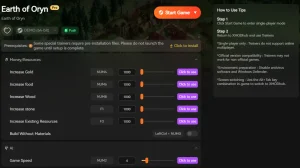
💰 Infinite Resources
Never run out of wood, stone, or gold. Build your dream city without waiting for gatherers.
❤️ God Mode
Protect your units and buildings from damage during enemy raids or disasters.
⏱️ Instant Build
Construct buildings immediately without the waiting period.
⏱️ Game Speed
Speed up time to pass winters quickly or slow it down to manage complex battles.
These featured mods are just the beginning. Whether you’re looking to skip tedious grinding, experiment with different playstyles, or speed up your progression, XMODhub’s comprehensive toolkit offers dozens more options tailored to your playstyle.
Earth of Oryn Troubleshooting FAQ
Ready to enhance your gameplay?

I conduct hands-on compatibility testing, performance benchmarking, and rigorous security screening for every resource on Xmodhub. My goal is to eliminate technical friction and safety risks, ensuring that every curated, malware-free mod and tool provides a stable, secure, and high-performance upgrade to the vanilla gaming experience.


 Catherine Hu



I’ve had the same problem with games freezing at startup, and running them as an admin solved the issue for me. It’s one of those simple fixes that can make a huge difference, especially when dealing with permission-related crashes.